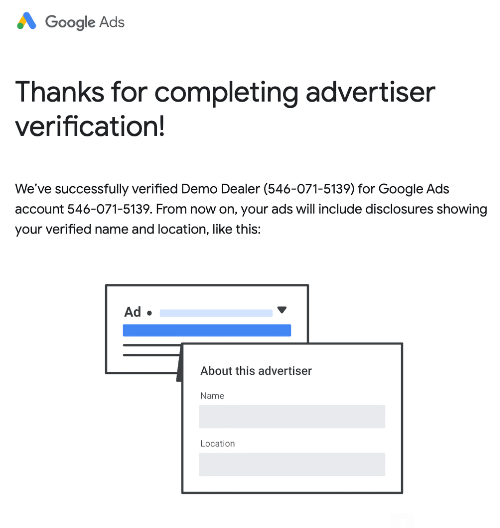
This guide is about Google's Advertiser Verification program which is essential for advertising on Google platforms.
Google's Advertiser Verification confirms advertiser authenticity. Once verified, Google displays the advertiser's name, location, and ad history on platforms like Google Search and YouTube. Depending on regional laws, more details might be shared to meet legal standards.
- Confirm your identity and business.
- Display your name, business name, and location in ads.
With increased transparency efforts, Google will publicly share details like:
- Changes in advertiser name.
- Ad creatives.
- When and where ads were served.
- Ads or accounts removed due to rules or policy violations.
- Business contact details.
Your personal contacts, phone numbers, and emails won’t be disclosed.
To begin, log into your Google Ads account.
1. Click on Billing in the left side menu of the Google Ads User Interface.

2. From the menu that appears, select Advertiser verification.
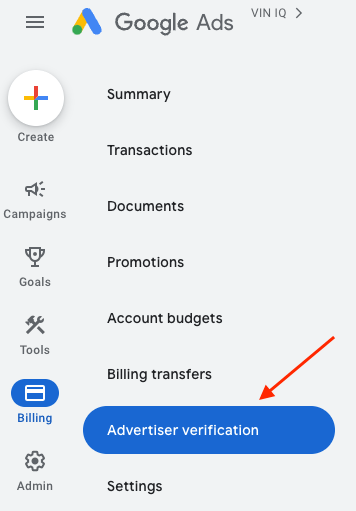
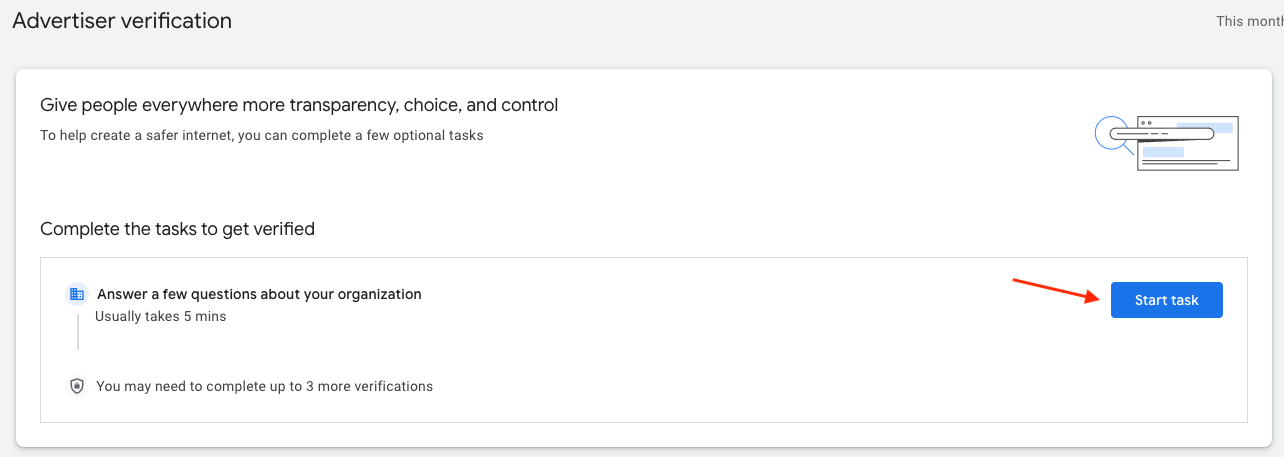
You will be redirected to the Advertiser Verification page.
3. Click on Start task to proceed.
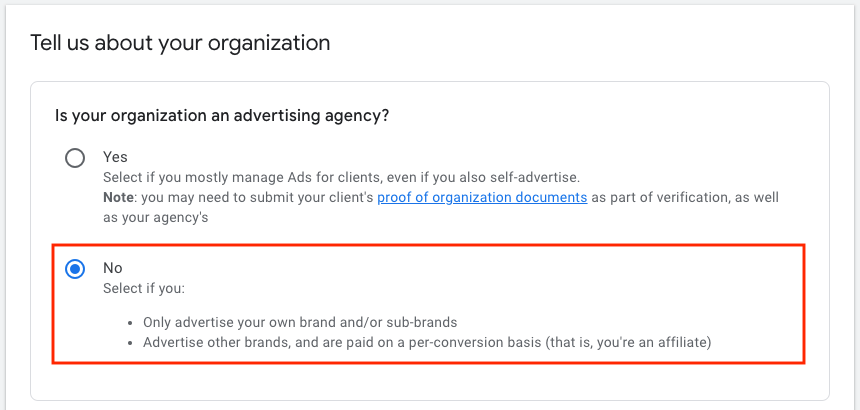
4. During the validation process, Google will ask for information about your business. In the first question select No, since your organization is not an advertising agency.
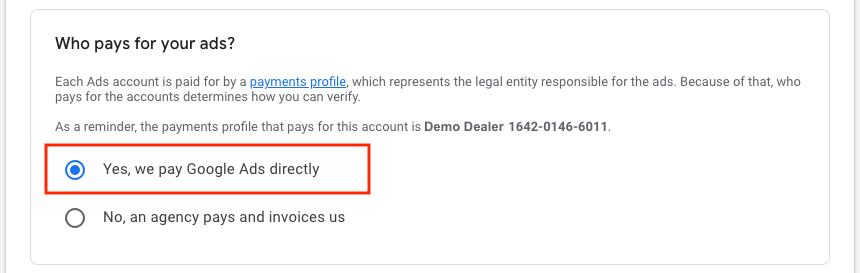
5. Next, please select Yes, we pay Google Ads directly since the billing information pertains to your business.
6. Click on Save & Continue to proceed.
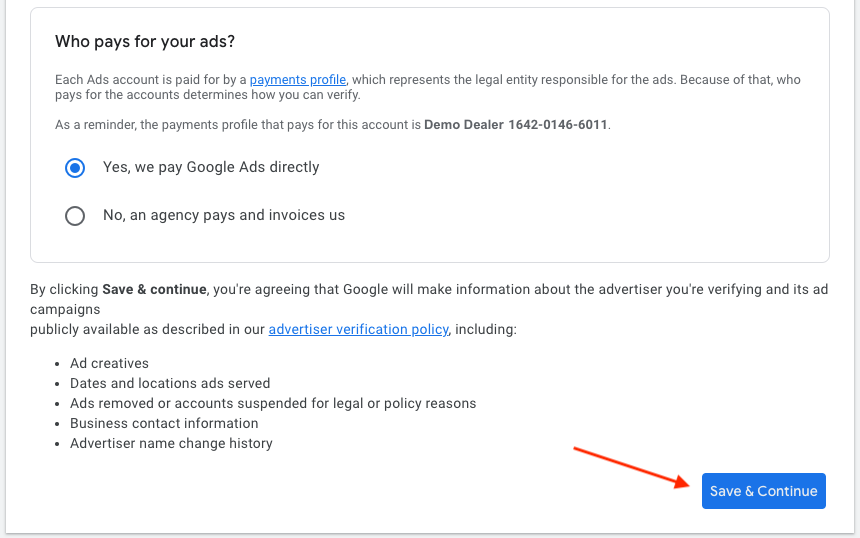
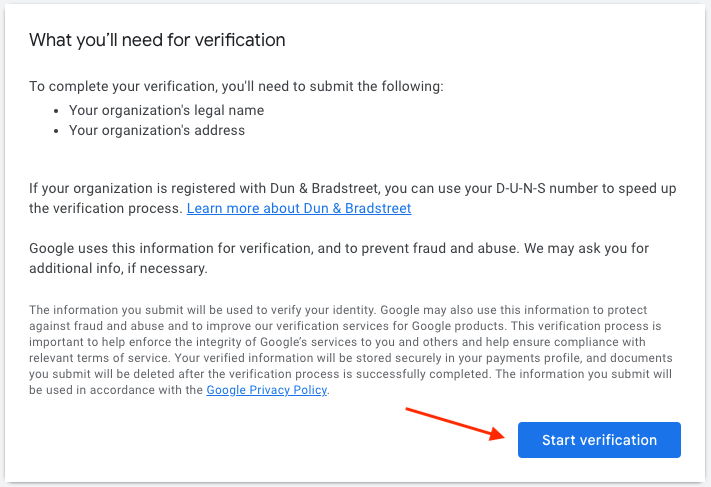
In the following steps, Google will ask for your organization’s legal name and address. Additionally, they may ask for more information.
7. Click on Start Verification.
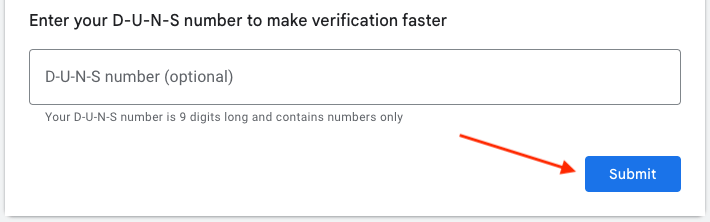
8. Fill out your organization's info and provide a D-U-N-S Number (optional) if you have one, for faster verification.
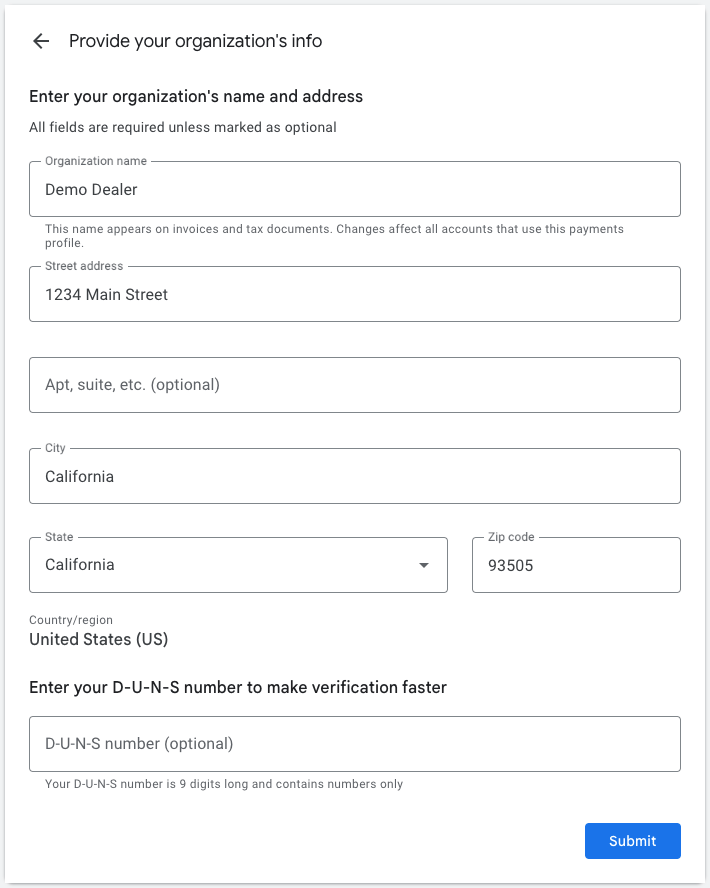
9. Click on SUBMIT.
10. If Google is able to confirm your identity the verification process is complete.
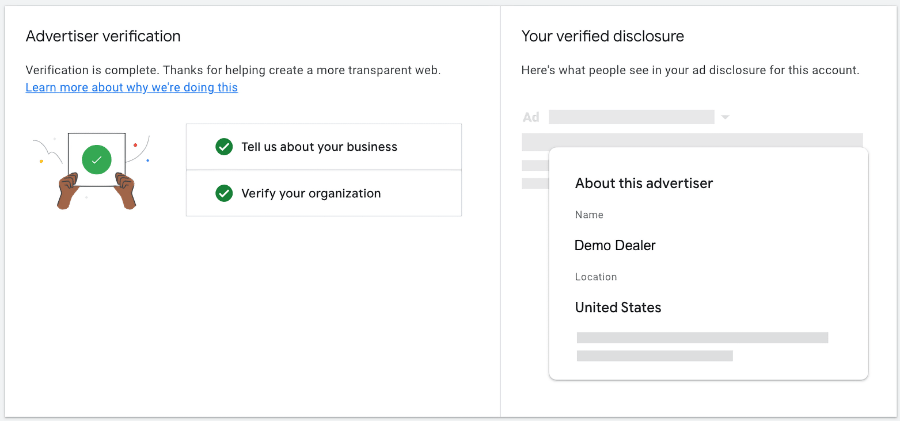
If additional documents are required.
11. Google might ask you to submit additional documents. Click on Start task.
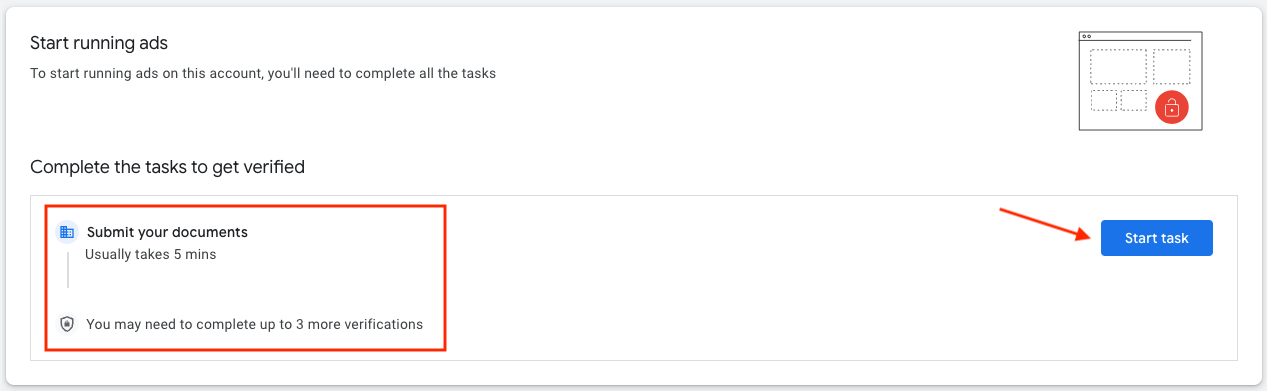
12. Two types of documents can be requested:
- Organization Registration (e.g., IRS documents like CP575, Form 8871; state business certificate; recent SEC filings like 10-K; credit reports from Experian, Equifax, etc.).
- Authorized Rep's Photo ID (e.g., Passport, State ID, Driving License, Green card).
13. Click on Start verification.
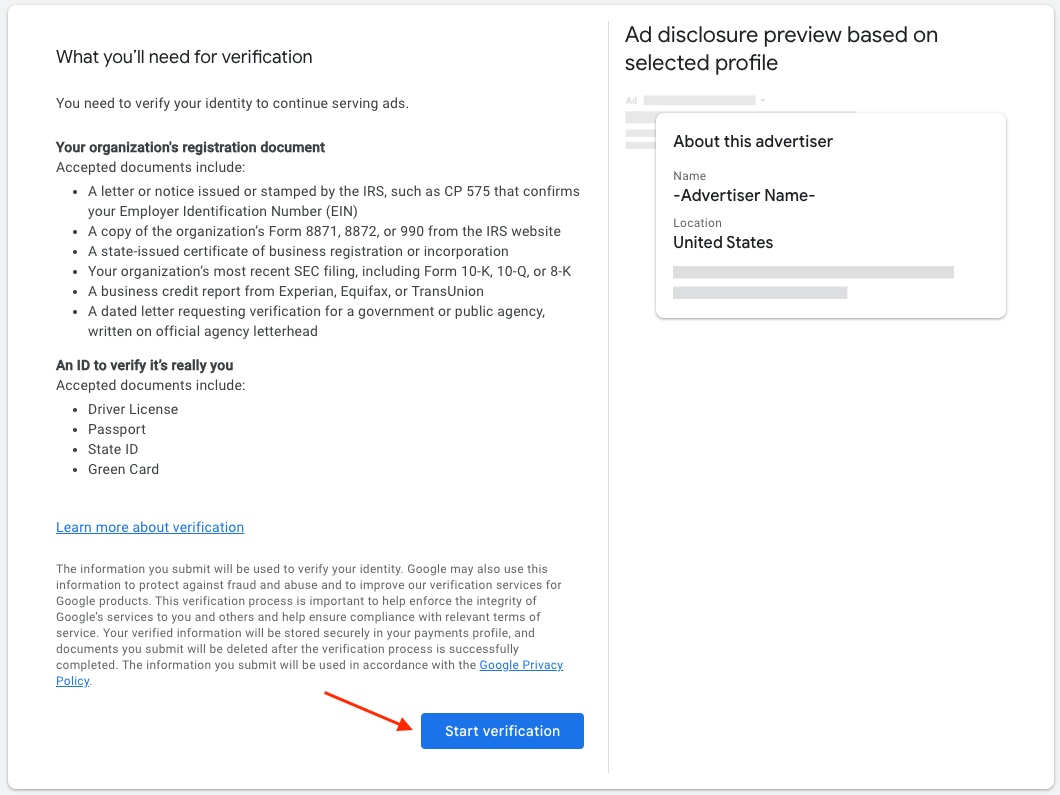
14. Verify your dealership's details and upload the additional necessary documents. Click Next and follow the additional steps.
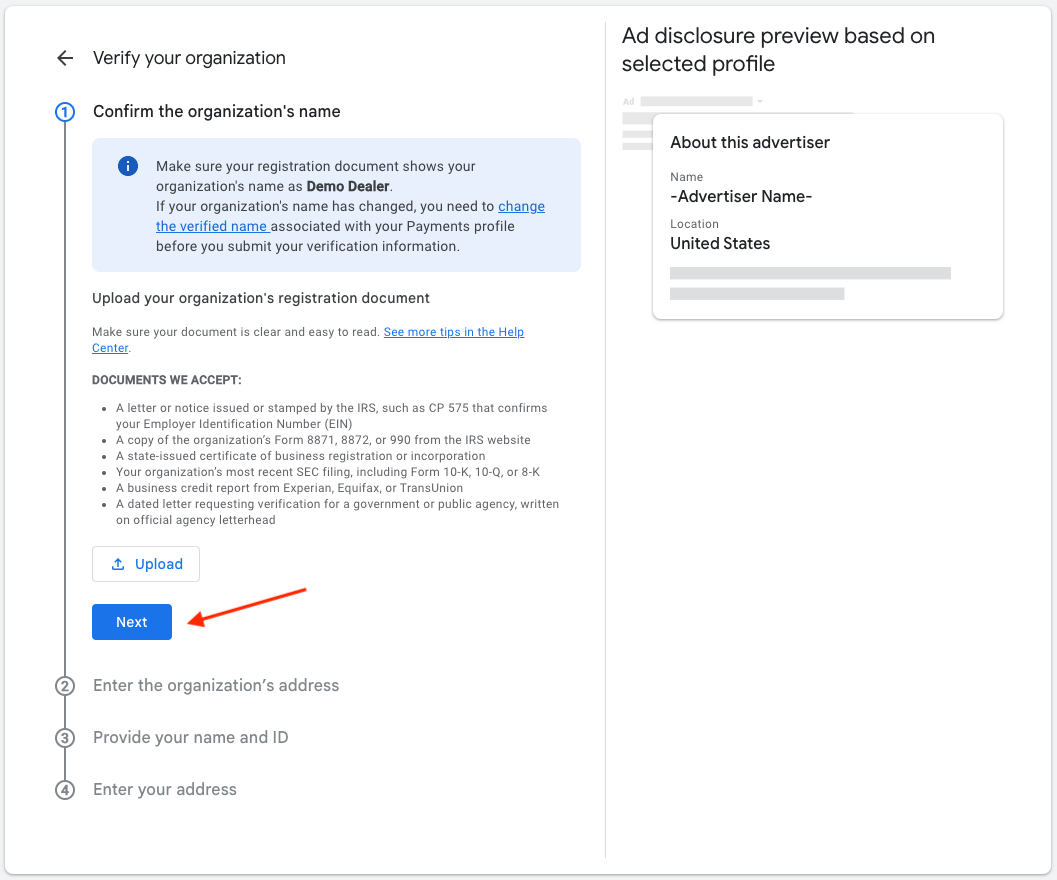
The verification will go into review and once a decision is made Google will update you via e-mail.
15. If prompted, click on GOT IT to end the process.
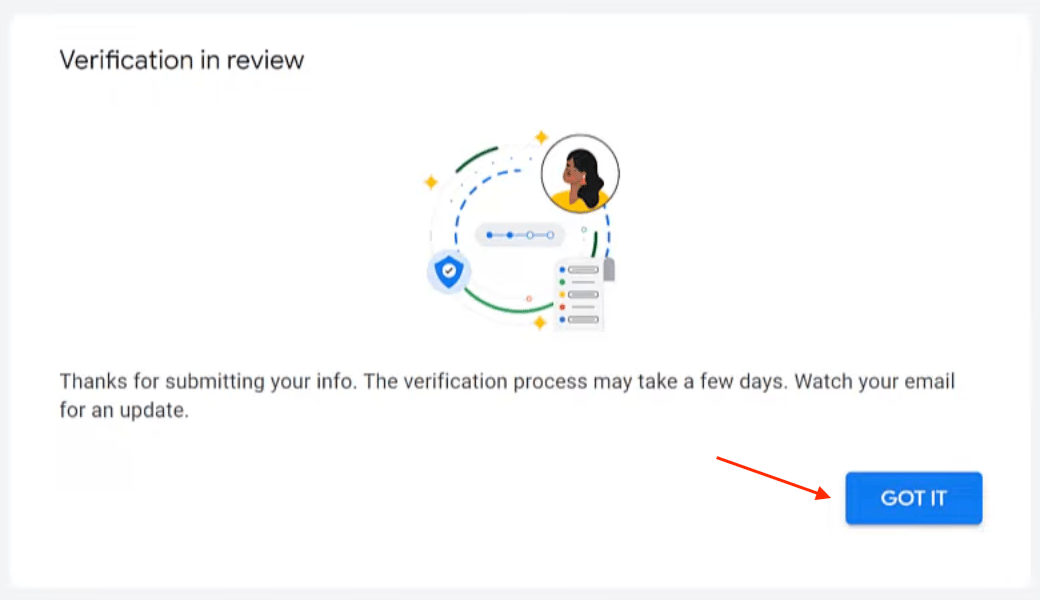
After a couple of days, you should receive an e-mail stating that your organization’s identity has been verified.