How to Setup 3rd Party Data Feed using vAuto
The objective is to use vAuto to send VIN IQ a report (feed) of the 3rd party VDP views each vehicle is receiving from CarGurus, AutoTrader, TrueCar, etc.
Before proceeding, have the the FTP credentials provided by VIN IQ ready. If you don’t have them yet, please email clientcare@viniq.io.
If you have multiple rooftops, each report/rooftop needs a different set of FTP credentials.
Create a new report in vAuto Provision/ProfitTime
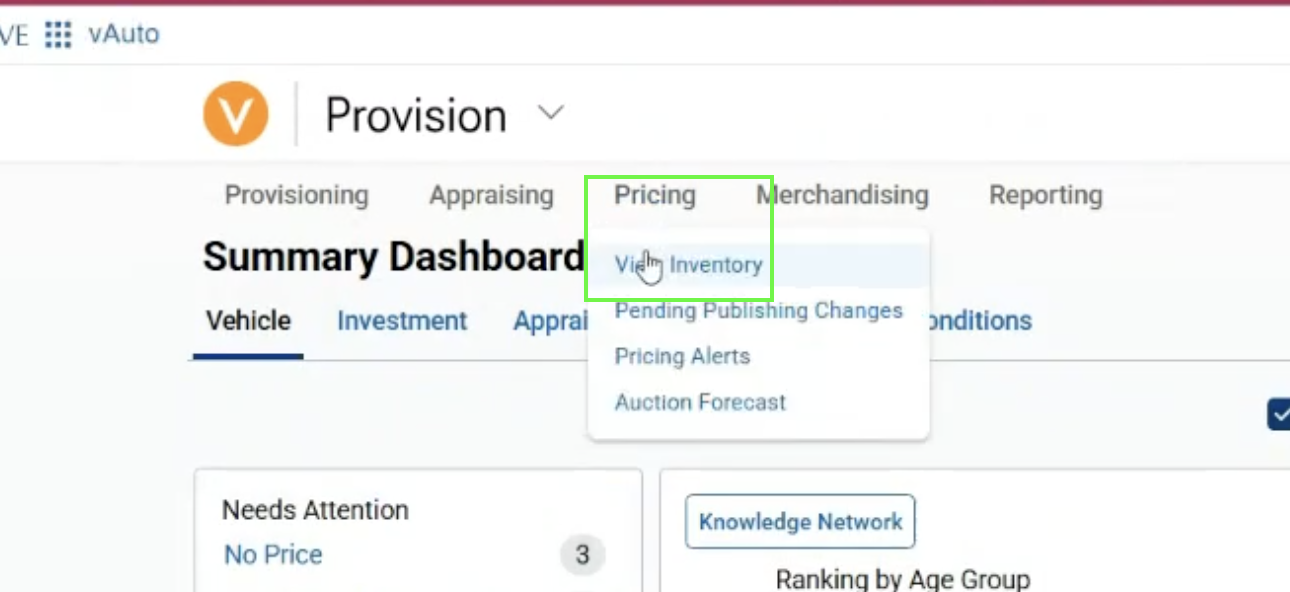
1. Log in and hover over the Pricing header
2. Click the View Inventory option:
3. From the Vehicle Inventory screen, find the Reports/Customize menu item directly above the inventory list and click it to expand the menu:
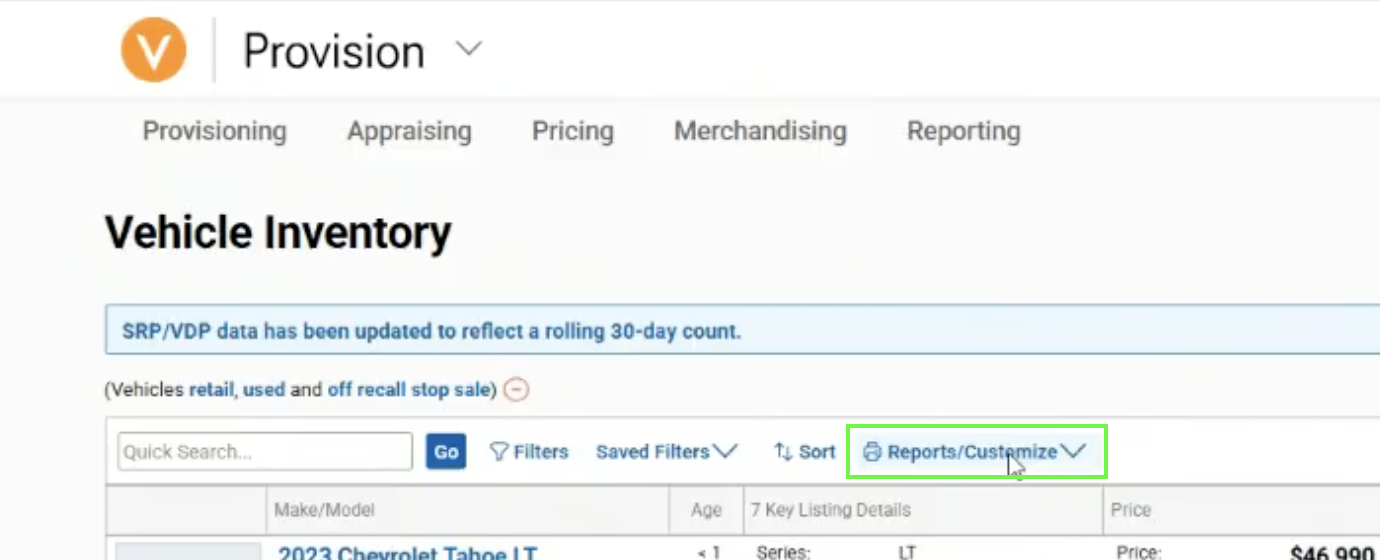
If the menu does not appear, check for a pop-up blocker message and allow the pop-up.
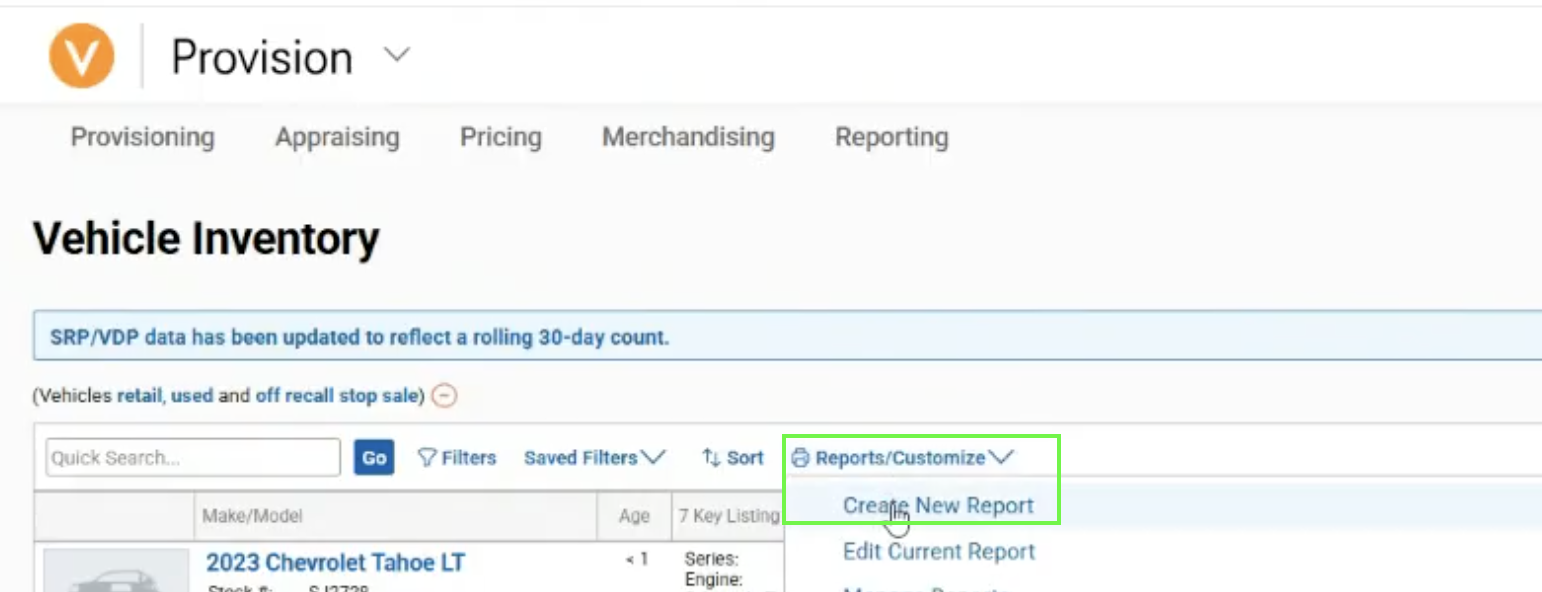
4. From the menu that appears, choose Create New Report:
5. From the screen that appears, you now set the fields you want to appear in the file. There will be some default fields already present.
Fields appear as gray boxes at the bottom of the screen. Click and drag to move them around, or click the X to remove them.
We only need Vehicle, VIN and Stock # from the default set of fields
Optional: remove the extra fields if desired
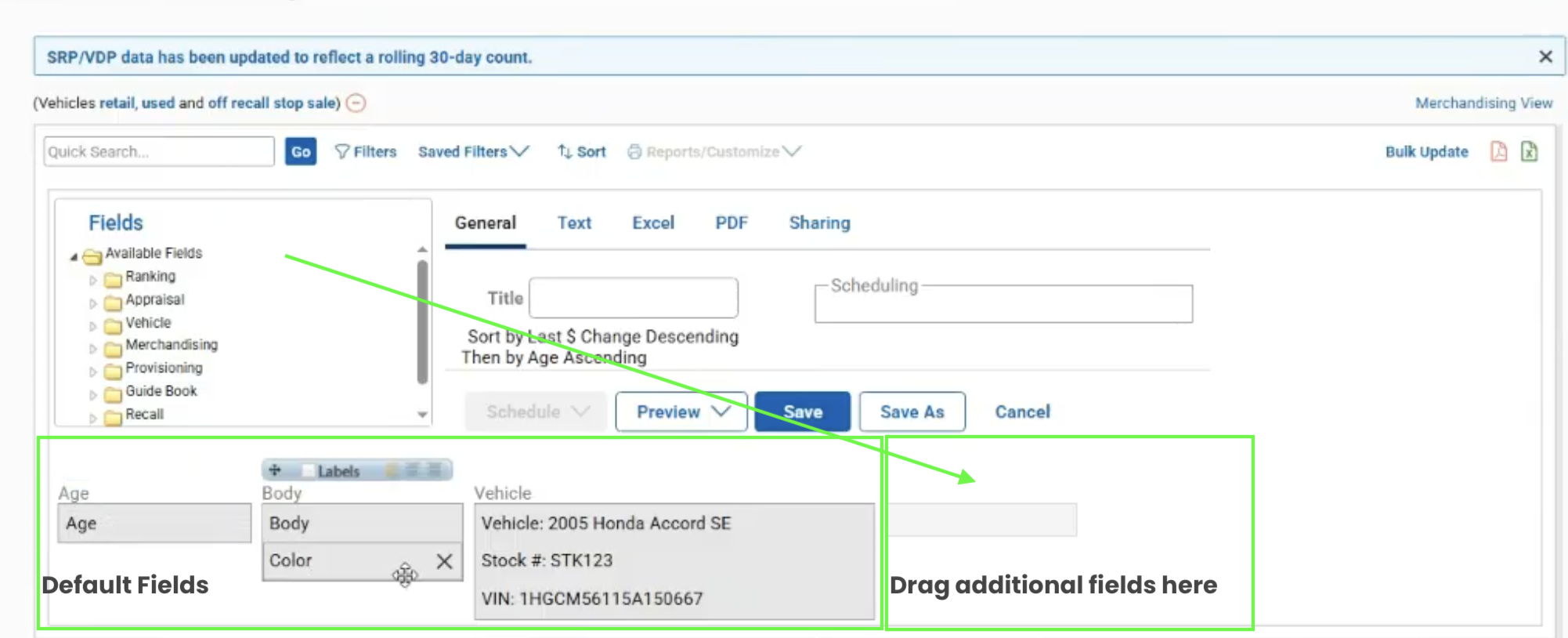
6. In the section labelled "Fields", click on the Merchandising folder. The folder will expand to show the 3rd party platforms currently sending data to vAuto.
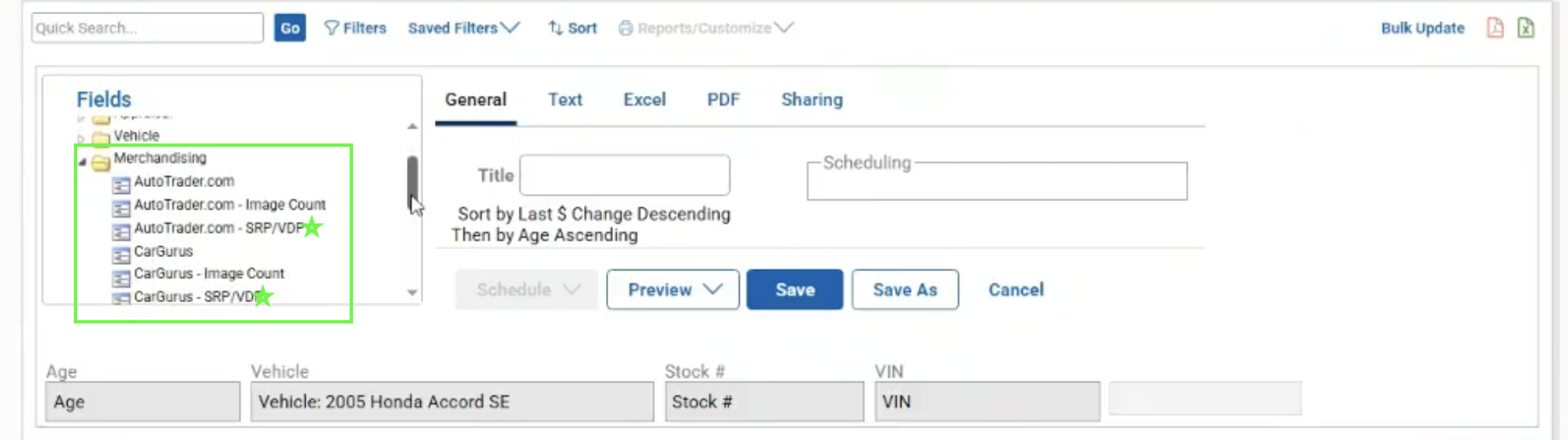
7. For each of the 3rd party providers listed, drag the field named SRP / VDP onto the empty gray box at the end of the list of enabled fields:
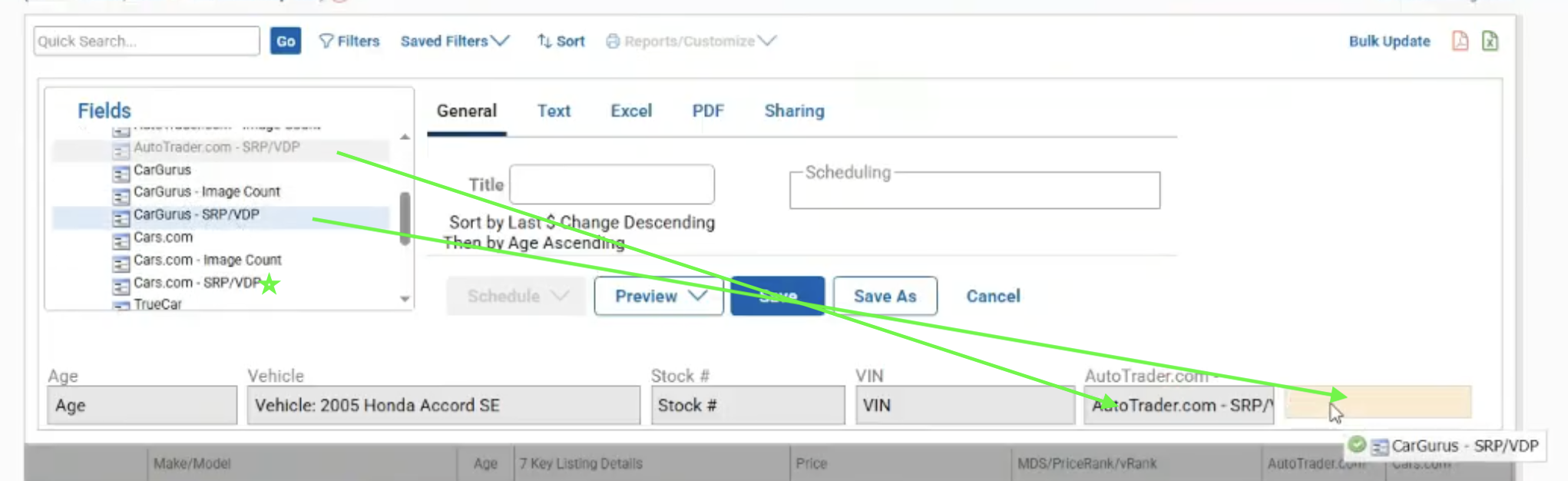
Fields we typically see and want in the report:
AutoTrader.com SRP, AutoTrader.com VDP, AutoTrader.com % VDP
CarGurus SRP, CarGurus VDP, CarGurus % VDP
Cars.com SRP, Cars.com VDP, Cars.com % VDP
TrueCar SRP, TrueCar VDP, TrueCar % VDP
Your AutoSweet Site SRP, Your AutoSweet Site VDP, Your AutoSweet Site % VDP
Your setup may have more/less fields available - select any field that contains “VDP”
8. We also want to receive the VIN Leads field if possible.
Back to the section labelled “Fields”, find and click on the folder labelled VIN Solutions.
When expanded, you should see the VIN Leads field.
Drag it down onto the empty gray box at the end of the list of enabled fields (same as you did for the VDP fields above).
NOTE: the VIN Solutions folder will only be present if (1) you are using VIN Solutions and (2) VIN Solutions is integrated with vAuto.
It is free to integrate. Call your VIN Solutions rep and ask them to integrate with vAuto.
Once that is complete, you can update the report to include the VIN Leads field.
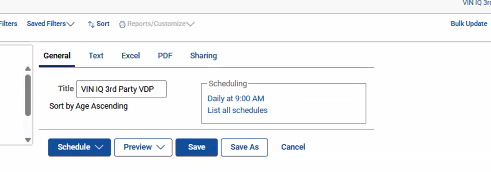
9. Once you have added all of the fields, populate the Title field with a name for your report.
We suggest: VIN IQ 3rd Party VDP Leads
10. Click the blue SAVE button.
11. Once you have saved it, the Schedule button becomes available.
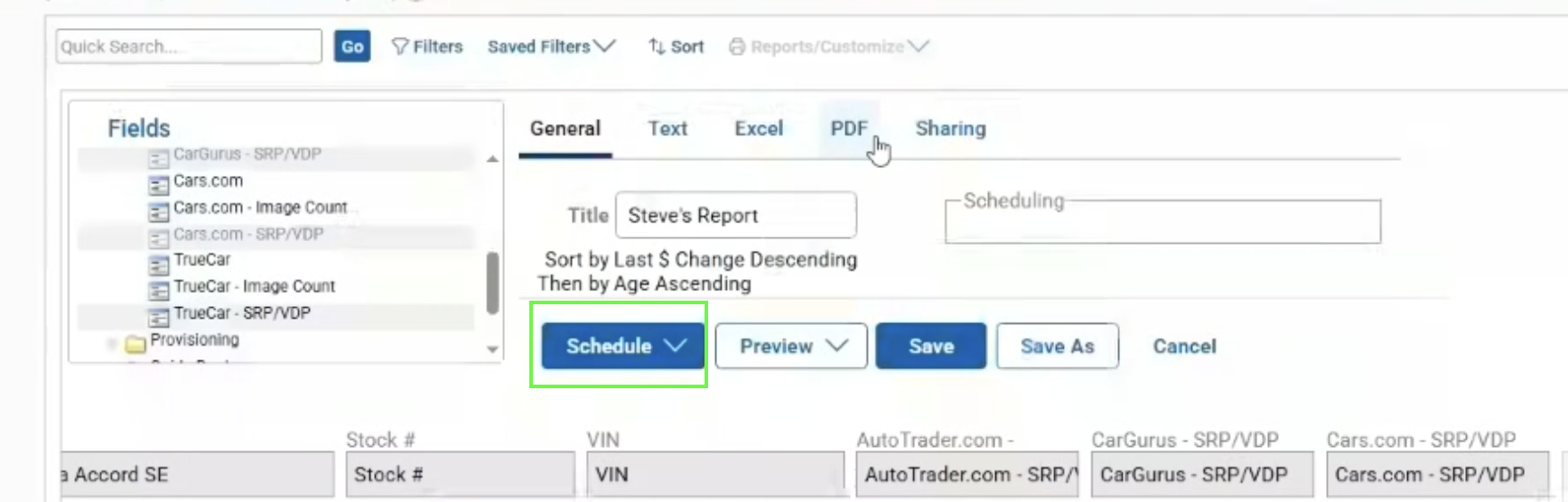
12. Click the Schedule button and a menu will appear. Click the FTP option.

13. Configure the FTP delivery details:
Hostname: sftp.viniq.io
Protocol: SFTP
Port: 22
Username: <provided by VIN IQ>
Password: <provided by VIN IQ>
Filename: 3rdpartyleads.csv ← must include .csv at the end
NOTE: There are separate FTP locations for each dealership/rooftop report. Do not use the same credentials for more than 1 dealer/report.
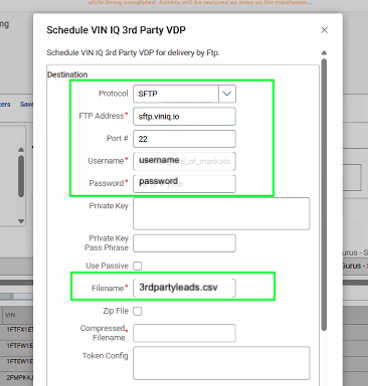
Ignore all other fields in the Destination section. Even though Compressed Filename shows it is required, it’s only required if Zip File is enabled and we do not want Zip File enabled.
14. Configure the Report by selecting Text as the Type.
15. Configure the Schedule by selecting Daily as the Repeats and anytime as the Time.
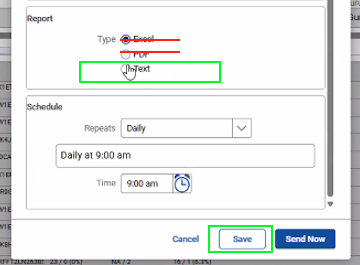
16. Save changes! And you’re done. You will see the schedule noted once the pop-up closes: